Current guide
Website access and permissions
Website access and permissions#
Workbench starts with narrowly scoped access to supported AI websites. You can optionally enable it on another regular HTTPS site when you want webpage tools, scratchpad capture, or the Workbench interface there.
What website access changes#
Granting access allows the extension to load on that site. It does not turn an arbitrary site into a supported AI-chat provider, and it does not bypass browser-protected pages or protected editors.
Enable Workbench on a website#
- Open the HTTPS website you want to use.
- Open the Workbench popup.
- Choose the control to enable Workbench for the current site.
- Approve the browser's optional site-access request.
- Wait while Workbench attempts live activation.
If activation cannot be verified in the current tab, the popup offers a reload. A reload is a fallback, not an automatic requirement after every permission grant.
Permitted Sites#
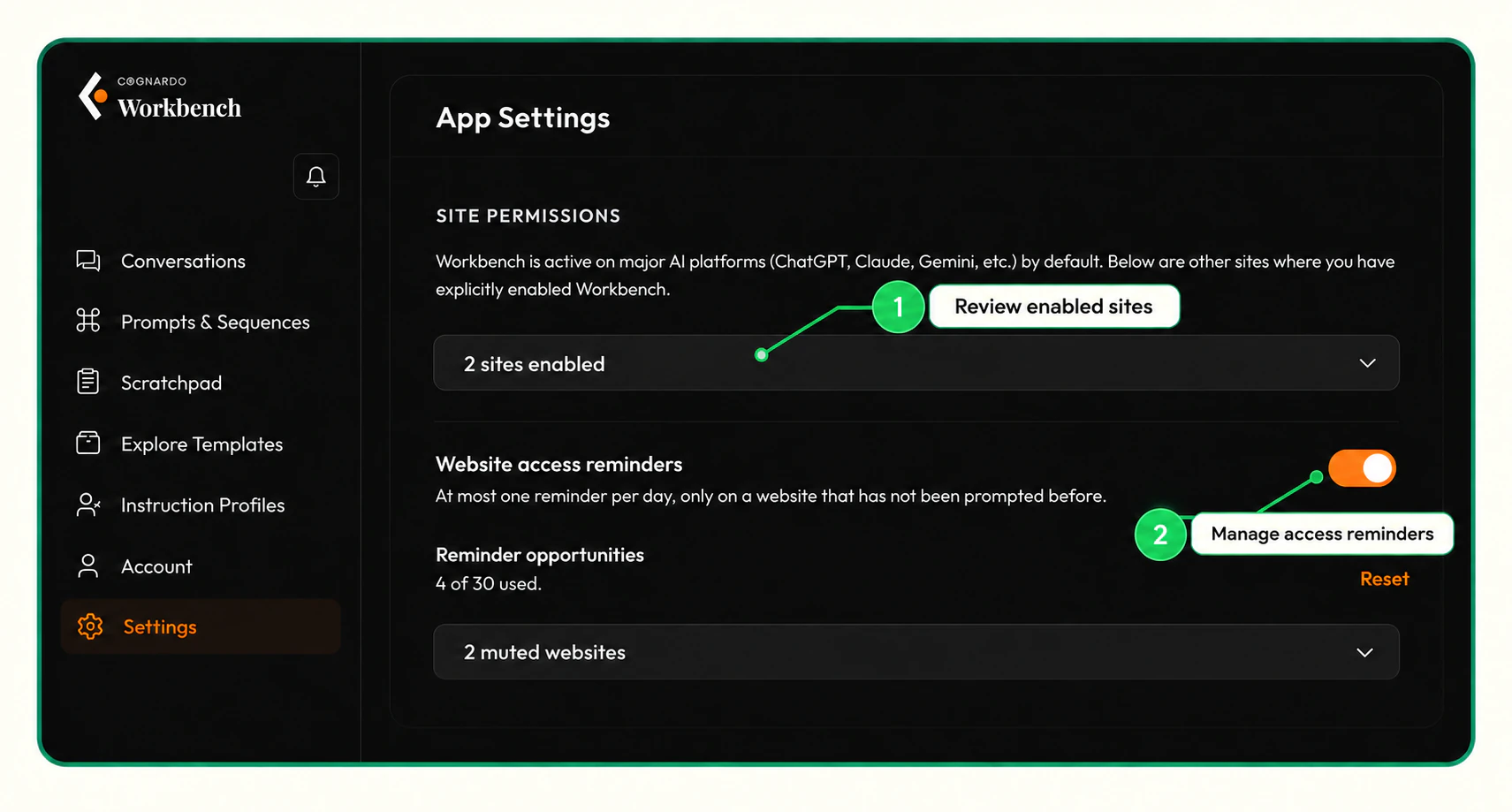
The Permitted Sites list records ordinary websites you enabled manually. Supported AI providers are governed separately and may not appear in that list. Removing a site revokes the optional host permission; reload open tabs for the removal to take effect consistently.
Access reminders#
Workbench can show an automatic reminder at most once per day on a website it has not prompted before, with a lifetime budget of 30 reminder opportunities until you reset it. You can mute a site, turn reminders off, or reset the reminder history in Settings. These choices affect automatic prompts only: you can still enable a site manually from the popup.
Where access cannot work#
Chrome blocks extensions from protected pages such as browser settings, extension pages, the Chrome Web Store, and some built-in viewers. Workbench can also avoid editors where injecting its interface would be unsafe or unreliable.
Related guides#
Guide feedback