Current guide
Files and Attachments
Files and attachments#
Workbench captures supported files attached to completed chat messages when Cloud Sync & Intelligence is enabled. The Files tab finds them without downloading every private file.
Capture requirements#
- Workbench is enabled and signed in on a supported AI chat.
- Cloud Sync & Intelligence is on.
- The message containing the attachment has finished.
- The file is no larger than 20 MiB, uses a supported type, and your attachment-storage quota has room.
Supported categories include common images, PDF, plain text, Markdown, CSV, JSON, ZIP archives, and Word, Excel, or PowerPoint documents. HTML and JavaScript files are blocked. A provider may still prevent capture when its temporary source URL expires or cannot be fetched.
Find and download a file#
- Open Conversations and select Files beside Conversations and Pins.
- Search by filename or filter by model, file type, or recorded date.
- Include hidden content when needed.
- Expand its conversation group and select the file.
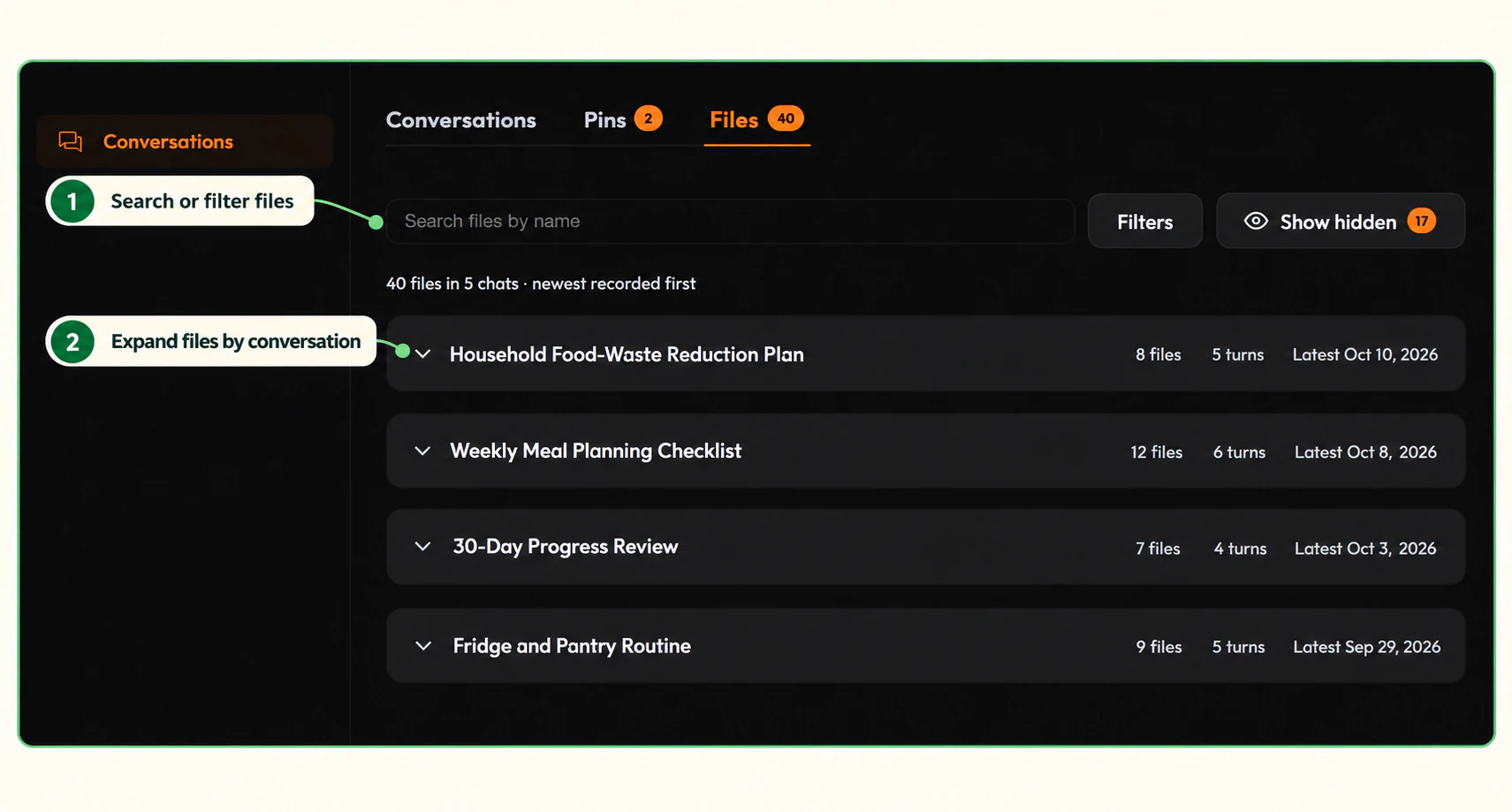
Selecting a file makes an authenticated request for that file only. There is no bulk attachment-download control. Sign in again if the session has expired.
If a file is missing, confirm sync was on when the message completed, reopen the original chat while the source is still available, and allow capture to finish. Common causes include an unsupported or oversized file, an expired provider source, leaving while the response was still generating, reaching the attachment quota, or opening a chat captured before attachment support was available. Permanently deleting the conversation also removes its saved attachments; hiding preserves them.
Attachment-saving reminder#
When Cloud Sync is off and a chat contains files, Workbench can warn that those files will not be saved. Control this under Settings → Cloud Sync & Intelligence → Reminders → Warn when attachments can't be saved. Turning the reminder off only hides the warning; it does not enable attachment storage or change Cloud Sync.
Related pages#
Guide feedback